Patient Tracker User Guide#
Important
Please note that Patient Tracker is optimised for use with the following browsers: Microsoft Edge, Google Chrome, or Firefox. It is not supported by Microsoft Internet Explorer.
Introduction#
Patient Tracker is a first-of-its-kind application that takes data from a range of disparate healthcare systems (such as PAS, Radiology, Surgery, Pathology, etc) and knits them together from referral up to tell a patient’s ‘story’. The same data is then bundled by specialty and a range of Trust-specified KPIs (Key Performance Indicators) are applied to determine which patients are not progressing as expected, highlighting them for intervention.
All patients are included so long as they have a pathway in the PAS system , regardless of setting, priority or route into the hospital. Some inpatients and ED attenders would only be captured if they were referred for further consultation, thereby creating a pathway in the PAS system. By default, only patient pathways with an open referral status are shown, but this can be adjusted using the pathway filtering.
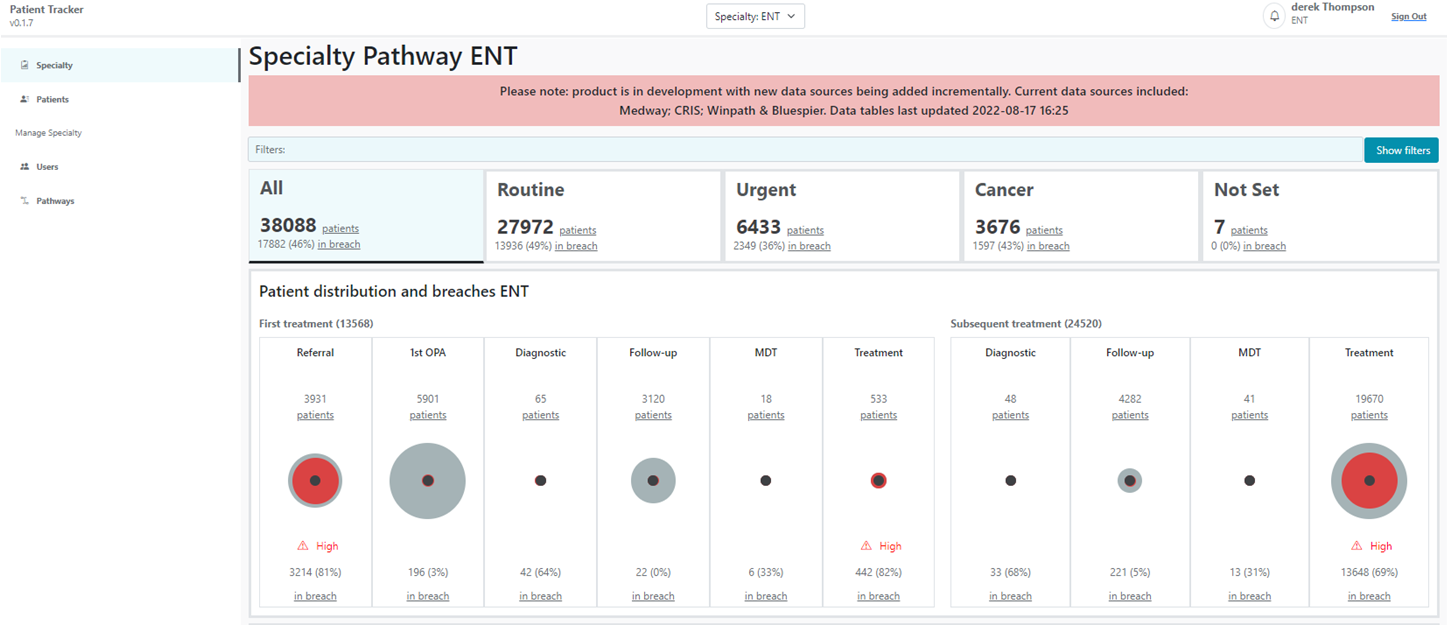
Fig. 1 An illustration of the Specialty Overview page of the Patient Tracker (NB users without System Administration rights will not be able to see the ‘Manage Specialty’ options on the left-hand side of the screen) #
Purpose#
The primary purpose of Patient Tracker is to provide a safety net for pathway management and reduce patient risk. Examples, albeit thankfully infrequent, of patients coming to harm as a result of delays or becoming ‘lost’ in the system do occur; however, these can be prevented by targeting resource to patients who are falling behind on their expected clinical pathway.
Traditionally, patients suspected as having cancer have been carefully (but manually) tracked through their pathways to ensure they meet national targets. The exponential growth of activity associated with cancer pathways, in support of the NHS target to improve the early detection of cancer, has not been mirrored by corresponding growth in resources. In short, there are far too many patients needing to be tracked by too few staff.
Non-cancer patients have historically had less allocated resource to track their progression – it is recognised that with the backlogs developing from Covid disruption, there are some groups of patients (i.e. those who have completed their first definitive treatment) for whom there is no regular tracking at all. This represents a significant risk to patients and the organisation.
Tracking is currently performed using a variety of non-standardised methods. Cancer patients may be tracked using a dedicated Cancer system. Non-cancer pathways are often tracked on Excel or legacy systems. Many administrators keep notes, set reminders, etc using one or more of the following methods:
-
Excel spreadsheets (referred to as the PTL – Patient Tracking List)
-
Paper records
-
Diary reminders, for example, in Outlook
-
Paper diary
-
Phone reminders
Each of the above represents risk: The electronic methods are not accessible to all interested parties yet can sometimes contain more up-to-date information than on the EPR; Paper records are also not accessible and can be lost; It is not possible to audit the reliability of many of the above methods or ensure patient identifiable data is treated securely.
Finally, on top of safety, an additional benefit is the improved operational grip and control that users can derive from understanding where bottlenecks are developing in phases of the pathway (the ‘Specialty’ tab) and the transparency that the patient timeline view brings to reviewing individual pathways (the ‘Patients’ tab).
User types & requirements#
Patient Tracker application meets several different user requirements following extensive research and design undertaken with system users. We anticipate that most users will be performing administrative, clerical or managerial roles. The system is particularly suited to validation tasks. Clinicians will find some benefits in the system, for example quickly understanding a patient’s history and progression, but they are not intended to be the primary users of Patient Tracker. Further detail can be found in User Types, Uses of Patient Tracker and User Management .
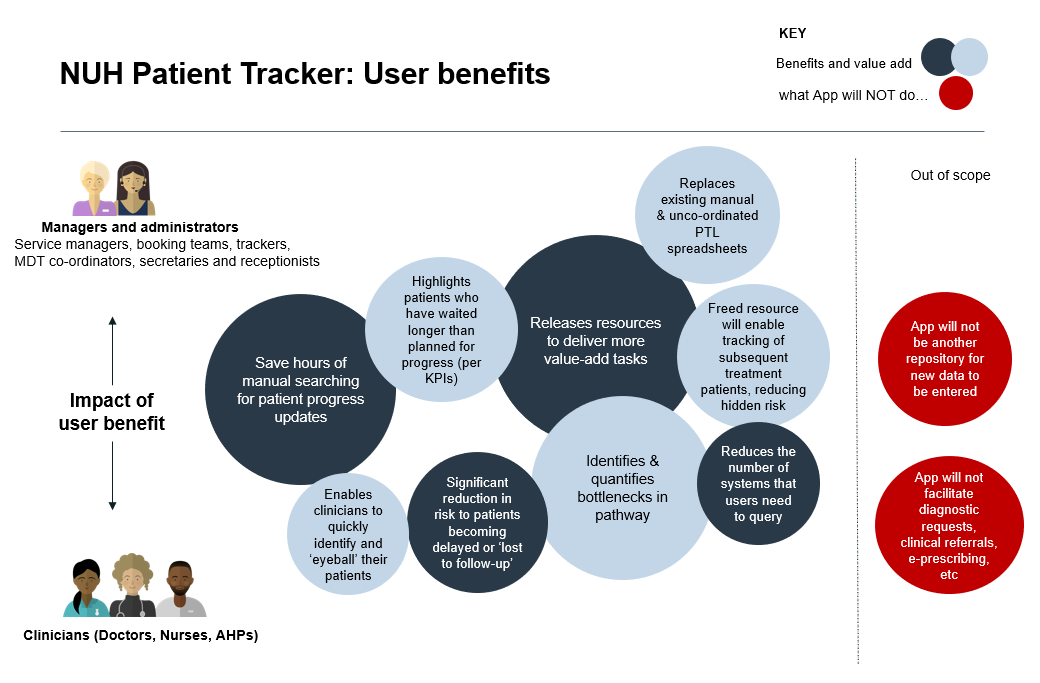
Fig. 2 Infographic showing the benefits that different users can expect to gain from Patient Tracker #
How Patient Tracker works#
Data is extracted at regular intervals, via the Trust’s data warehouse or source system. Each morning, the tracker is updated to show the current position of each patient’s pathway. A calculation is made against any changes / additions that have occurred overnight.
Pathways are not presumed to be linear or predictable (patients may seemingly move backwards as well as forwards during their pathway i.e., a diagnostic procedure results in a patient being discussed at MDT where more diagnostic referrals are made). Patient Tracker re-calculates each pathway at every data refresh based on the latest data generated per patient.
Each event in the specialty pathway has an assigned (fully configurable) key performance indicator (KPI), measured in days, that it is expected the event will take to complete from the point of request/order to the point of completion. This is set at both specialty and priority level, and in some cases at sub-milestone level (different events within the milestone can have different KPIs). For example, a patient on a cancer referral pathway would expect to have an ultrasound scan performed and reported within 7 calendar days. For a routine pathway, the expectation would be much greater, say 45 calendar days.
Users of Patient Tracker can be limited to see only pathways that align to their specialty/specialties only (i.e., a secretary working in ENT only viewing ENT patients and their pathways, not Breast, Upper GI, etc).
Role of milestones#
A key concept for users to appreciate in Patient Tracker are the different pathway milestones. These have been created in order to group patients together against similar events instead of trying to apply a defined, linear pathway which is unrealistic. Some milestone names mirror identically with events – as summarised below:
|
Milestone |
Event(s) |
|---|---|
|
Referral |
Referral to specialty (from either an external or internal source) |
|
1^st^ OPA |
First outpatient appointment |
|
Diagnostic |
Imaging |
|
MDT |
MDT |
|
Treatment |
Pre-surgical assessment (Pre-op) |
|
Follow-up |
Follow-up appointment |
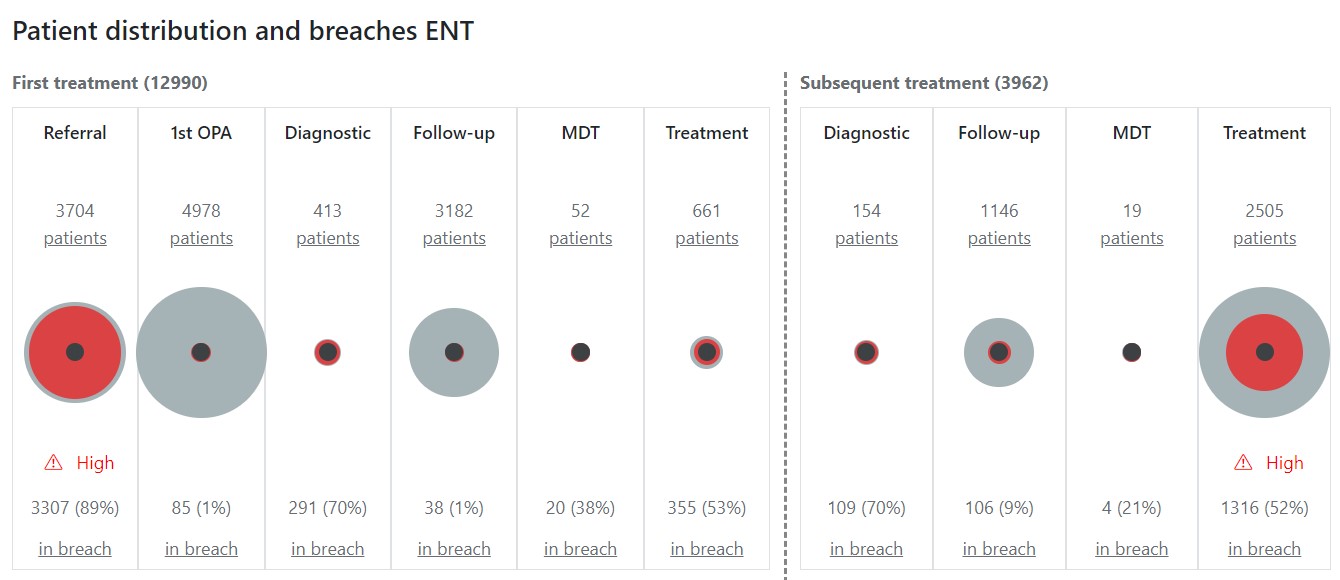
Fig. 3 Specialty Overview page: illustration of how patient pathways are distributed across the milestones. The size of the grey circle is proportionate the number of pathways (reflected in the numbers above the circles). The red area reflects the proportion of those pathways that have breached the locally determined KPI (reflected in the numbers below the circles). The black inner circles are all the same size and just provide a consistent reference shape across the phases. #
Display of data only, changes to be made at source#
A key rule in the design and development of Patient Tracker has been the understanding that no data will be edited or removed in the app. If users note data that is displayed incorrectly, it must be corrected at source. The app in its current form offers no functionality to capture data and does not write back into source systems.
The application does have an additional Validation and Task Management module. If this is enabled, notes and tasks will be recorded lovally within the application and be visible for all users to read.
Any corrections, or changes to source data, KPIs, etc, will update following a date refresh.
Patients only disappear from Patient Tracker for one of two reasons: completion of their pathway (i.e., they are fully discharged from the service) or if a patient dies (and this fact is recorded on PAS system). Some pathways may be hidden depending on Trust business or Data Quality rules.
Refresh rate#
Data that feeds Patient Tracker is extracted from the source systems into the Trust’s data warehouse (although could be extracted directly from source systems). This can include:
-
PAS systems
-
Pathology systems
-
Radiology systems
-
Surgery systems
-
Cancer systems
Once each system extract has been completed within the Data Warehouse, a net-change data extraction is sent to Patient Tracker. We aim for this process to occur outside of normal working hours to minimise disruption.
Resilience#
Patient Tracker relies on source system data to function (with some exceptions: local specialty-configured KPIs, and where utilised validation comments and tasks, are stored within the application). Therefore, if the application fails, the data tables will need to be resupplied and may therefore result in the application being offline during the time that it takes to extract and resend the data.
In the event that one or more of the source system data extracts fail, or an incomplete extract is obtained, Patient Tracker will not update and will show information from the previous successful extract. This will be reflected in the ‘Last updated’ time shown within the application.
Accessing the Tracker#
Patient Tracker is a webapp provided as Software as a Service (Saas). Patient Tracker, and all associated data, can be hosted internally on servers or within our secure Azure Cloud storage. The application is configured so it is only accessed by approved users (i.e., those with an approved email address via Trust Active Directory and SSO proccess). During implementation the Trust will be provided with a domain to access the application.
Access to Patient Tracker is restricted: new users should request access from their local specialty-specific Super User (or as an alternative, from the application’s System Administrator in Digital Services). Patient Tracker uses ‘single sign on’ technology – users with appropriate permissions will be able to open Patient Tracker, without entering any username or password. Access can be IP restricted, and requirements will be discussed during implementation.
The domain address will be provided at implementation, and our recommendation is this is added as a shortcut using the usual Trust process.
Users attempting to access the tool without having access granted to the application, are re-directed to a screen that informs them that they are unable to access the application and suggests that they contact a System Administrator.
By default users are limited to only see pathways that align to their specialty, however Patient Tracker is able to support users who work in more than one specialty or those with a requirement to view all data. The specialty can be selected using the drop-downvbox at the top of the screen (see Fig. 4 ).
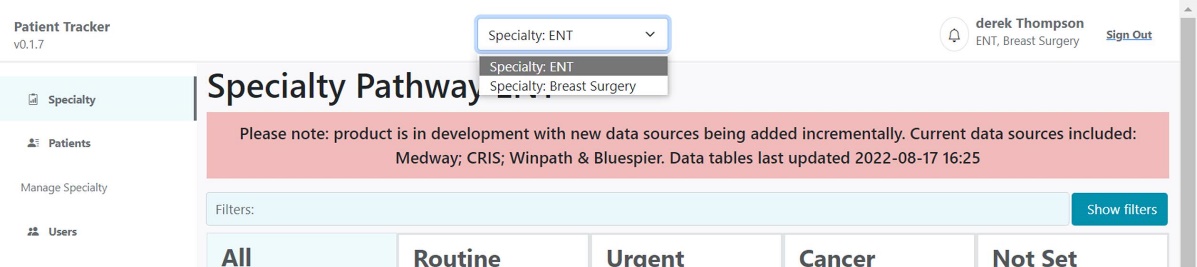
Fig. 4 Illustration of how users with more than one specialty can switch between the data that is presented in Patient Tracker #
Patient Tracker Orientation of Pages#
Patient Tracker has three main screens to support users:
-
Specialty overview page: this shows the total number of open pathways per specialty and the distribution of those pathways across the milestones. This is the front page on which all users arrive when logging into the application.
-
Patient Tracking List: this shows all the pathway-level details of open pathways that correspond to the front page. This page has extensive filters, as well as different ways to order the list of pathways and the function to search for specific patients.
-
Patient Timeline page: this shows the most granular level of detail of individual patient pathway – it tells the patient ‘story’ from the point of referral, to outpatient appointments, diagnostics and treatment. It enables users to, at a glance, understand how quickly the patient has progressed, if there have been delays, or if there are parts of the pathway that are incomplete.
There is an addition screen for managing saved worklists and alerts:
-
Saved Filters page: allows user to manage their saved worklists, delete them, and optin in to receive updates on changes to their worklists.
For Super Users or System Administrators, there are two additional screens:
-
User maintenance page: allows existing user details and access to be modified, user access to be made inactive and new users to be granted permission to access the application.
-
Specialty pathway maintenance page: allows users to modify pathways at a specialty and/or priority level, adding or removing events from the standard pathway, altering the specific KPIs applied locally to determine whether a pathway is ‘in breach’.
Specialty Overview page#
The specialty overview page serves as a landing page to the tracker for all users. For most users, they will have access to only one specialty – where more than one specialty is appropriate, the user will be able to switch between specialty views.
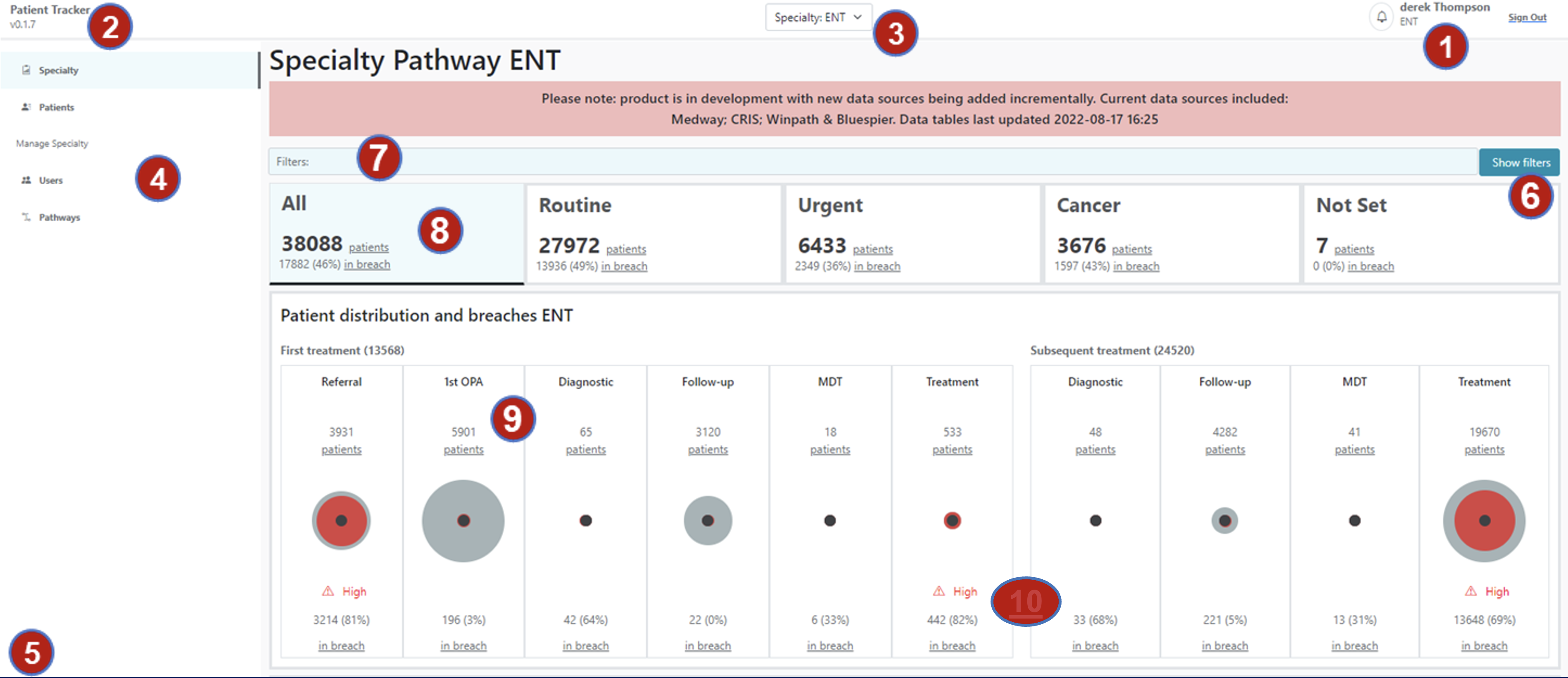
Fig. 5 Orientation of the front page, Specialty Overview#
The Specialty Overview page provides:
-
Identification of the user logged in
-
Identification of the version of Patient Tracker that the user is logged into
-
Ability to switch between specialties or view all specialties (where appropriate)
-
Menu access to other pages (with ‘Users’ and ‘Pathways’ options only visible to local Specialty Super Users and System Administrators)
-
Confirmation of the date and time at which data within the application was last updated (this should be viewed at every login)
-
Filters
-
Filters currently in use
-
An overview of current patient pathways, broken down by pathway priority, e.g., ‘Cancer’ only patients, those without a priority
-
An overview of the distribution of those pathways (split between ‘first treatment’ steps that will include referral and 1st OPA, and ‘subsequent treatment’ once the first definitive treatment has been delivered).
-
An overview of the proportion of pathways in milestones that are breaching respective Specialty-configured KPIs
Clicking on a particular priority pathway type, e.g., ‘Routine’ or ‘Urgent’ on the tabs at the top of the graphic pane (#8 in Fig. 5 ) will limit the data shown in the graphic to just those pathways. A ‘Not set’ priority pathway is also present and relates to Pathways without a priority within the source data.
On the lower half of the Specialty Overview page users will find more information on the pathways that have breached the locally defined KPIs; These KPIs are explained more in Chapter 5.2. This section enables users to dive deeper into the milestone data, in particular for the Diagnostic and Treatment milestones.
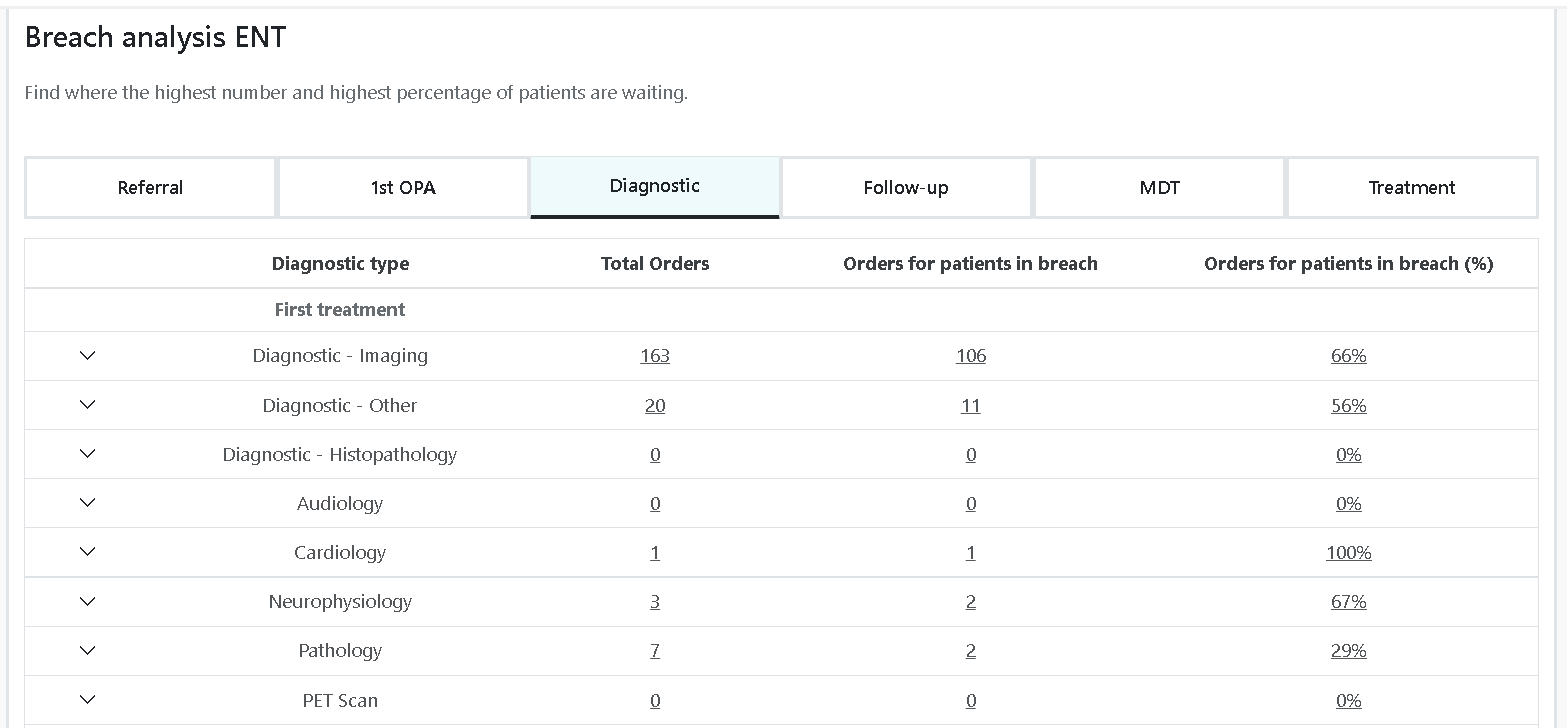
Fig. 6 Breach Analysis section of the Specialty Overview page#
Users should note that the milestones ‘Referral’, ‘1st OPA’, ‘Follow-up OPA’ and ‘MDT’ all count pathway numbers. The milestones ‘Diagnostic’ and ‘Treatment’ count orders since it is possible for a single pathway to have multiple tests and/or treatments active at the same time (e.g., a patient is sent for a CT scan, an echo and a blood test – one pathway, but three diagnostic orders). The numbers in the Diagnostic and Treatment sections of the Breach Analysis screen will not, therefore, reflect the totals expressed in the Specialty Overview.
Patient Tracking List (PTL) page#
This page enables users to view all pathways that are open in their specialty, and to reduce this list to patients that they are most interested in by using filters or by searching for specific patients.
Users are able to save a combination of filters as a ‘Favourite List’. This allows regularly used filters to be accessed as a quick worklist, and users will be able to receive updates when a patient is added or removed from a worklist.
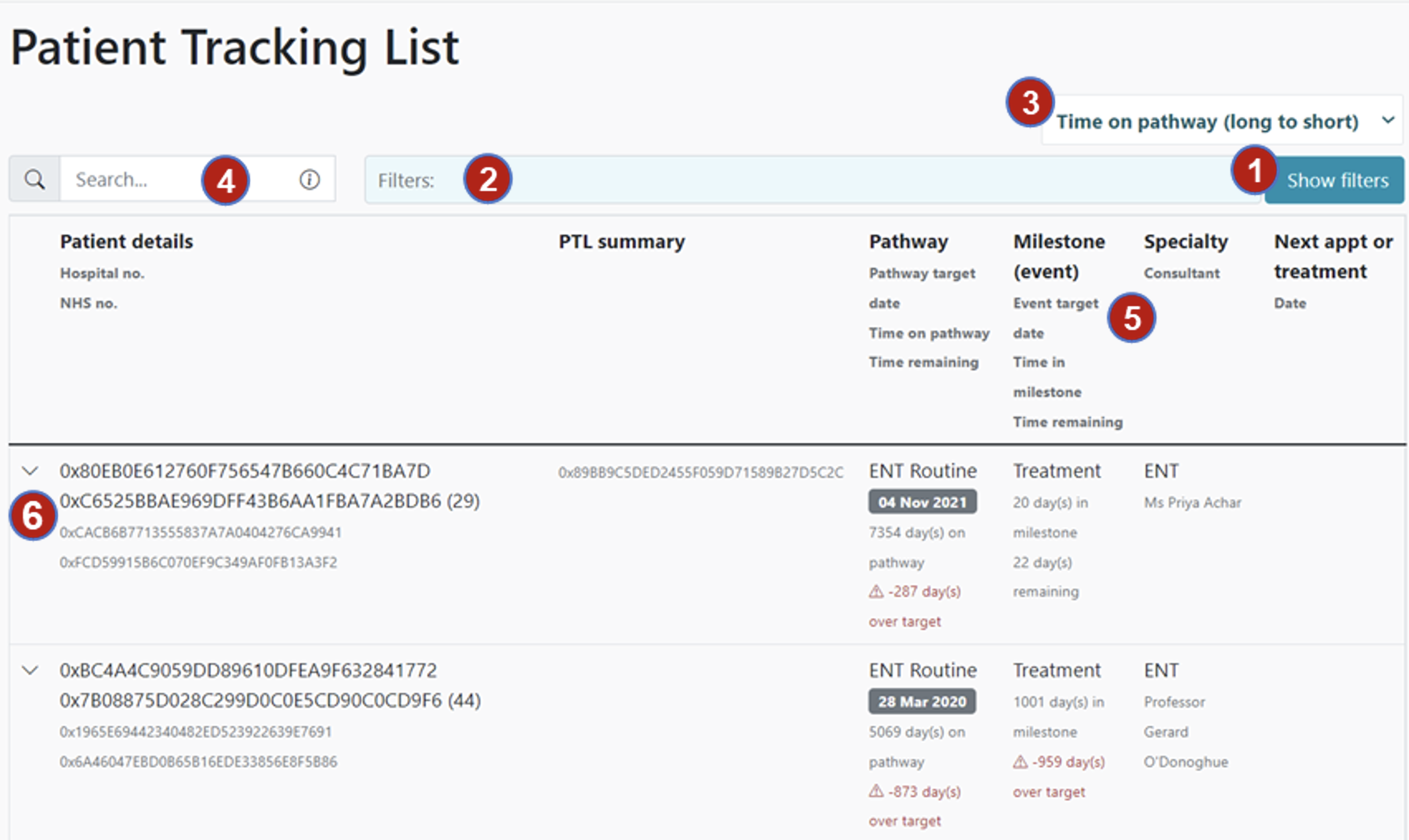
Fig. 7 Orientation of Patient Tracking List (PTL) page#
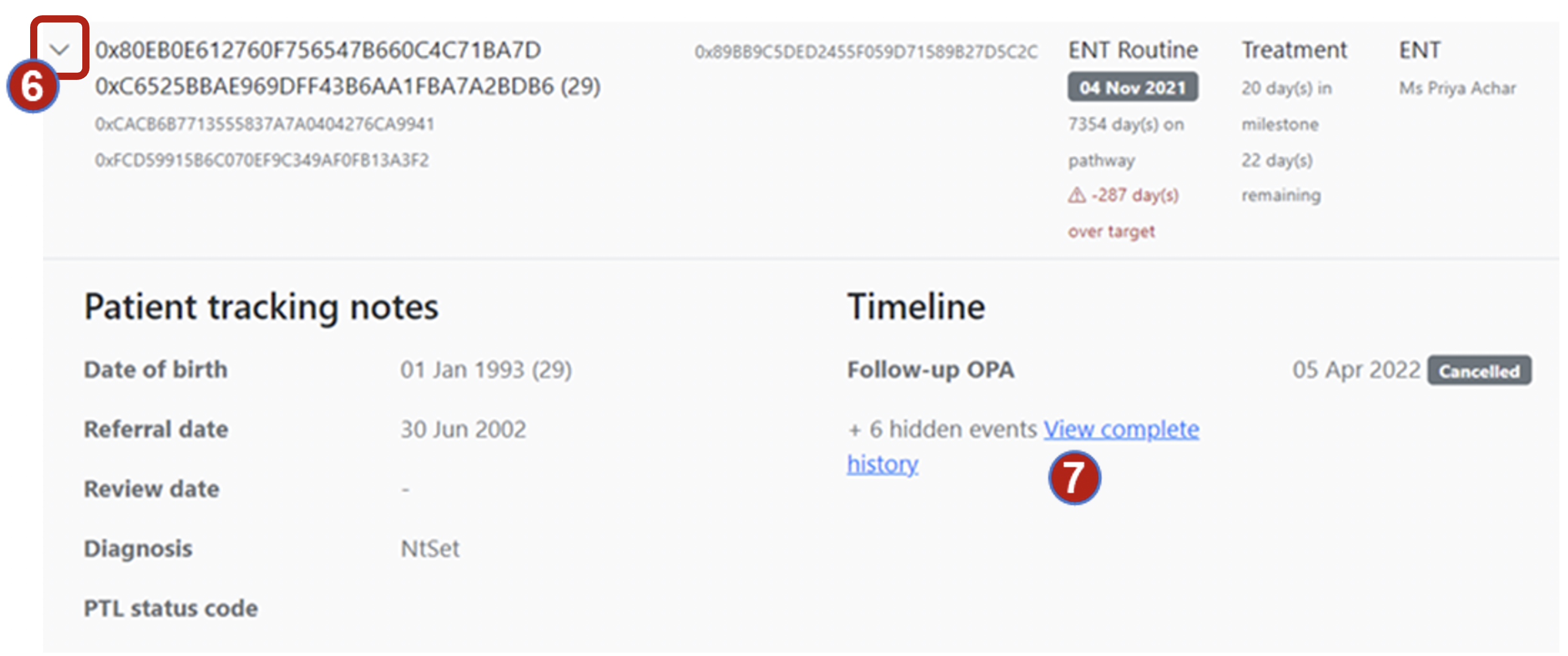
Fig. 8 Patient Tracking List pathway accordion expanded#
The PTL page includes:
-
Filter options
-
View of current filters that are applied
-
Sort options (see Fig. 9 below for full list of options)
-
Search bar, e.g., for searching a particular K-number
-
PTL columns, which are fixed as follows:
-
Patient identifiers: first name, surname, hospital number and NHS number
-
PTL update: most recent free text update (where provided) taken from Medway (NB: in future this will contain updates for cancer patients from Infoflex where a pathway is listed under the ‘cancer’ priority)
-
Specialty information: specialty name, named Consultant, deadline,
-
Milestone information: current milestone assigned, deadline, breach
-
Next event information: where provided, shows date of next booking on pathway (includes outpatient, diagnostic, treatment and MDT-activity)
-
-
Additional patient pathway information, accessed via the ‘accordion’ drop-down arrow
-
Access to the Patient Timeline view for each individual pathway
PTL Filters#
A range of filter options exist for the Patient Tracking List page to suit the individual needs of different users and tasks. These are accessible on the PTL (‘Patients’) page under ‘Show Filters’ (#1 in Fig. 7 ). The menu below ( Fig. 9 - Fig. 10 ) will become visible:
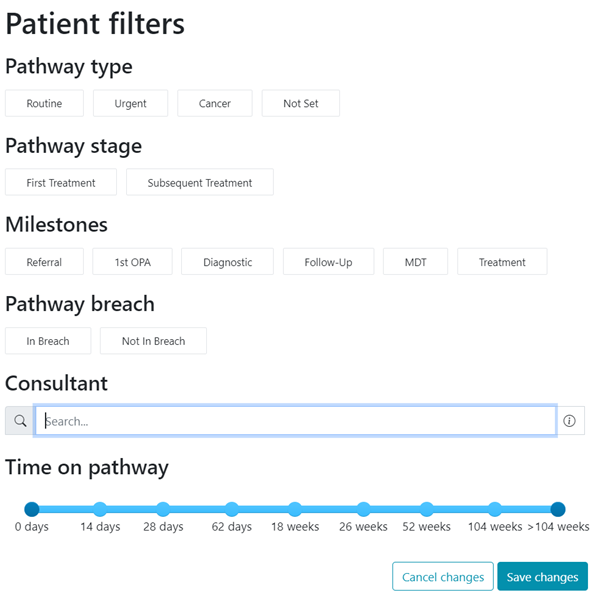
Fig. 9 Patient Tracking List user filter options (upper part)#
The filter options can be used in multiple combinations to return the required sub-set of specialty data (further details). A smaller set of these filters is also present on the ‘Specialty’ front page.
Patient Tracker can be configured on implementation to exclude certain types of pathways from the default view. By default, only patient pathways with an open referral in the PAS system are shown, but most PTL status types are included within this. The business rules around this can be configured during implementation or altered through a feature request (via the agreed process).
Frequently, specialties will choose to filter these open referrals to only show ‘active’ PTL types, e.g., Ongoing (20) and Start (10/11/12) ( Fig. 10 ). Filtering by specific ‘PTL Statuses’ or by ‘Surgical Priority’ is a key functionality available under PTL filters (‘Show Filters’ button).
The default inclusions and exclusions set by the Trust are combined under, and can be turned on/off using, the ‘Included’ and ‘Excluded’ buttons. By default, ‘Included’ is on and ‘Excluded’ is off as would be expected. If the ‘Excluded’ button is switched on, several options become available to enable users to include patient cohorts that are switched off by default e.g., referrals already discharged. In some instances (e.g. for Data Quality exercises) a user may wish to only see excluded pathways; this is possible by unselecting ‘Included’ and selecting ‘Excluded’.
This can be important when reviewing a patient’s history. For example, searching by a particular Patient Identifier without changing the filters may bring up only one ‘active’ referral by default; however, by also including discharged referrals may bring up several referrals (active & inactive) and provide a more complete overview.
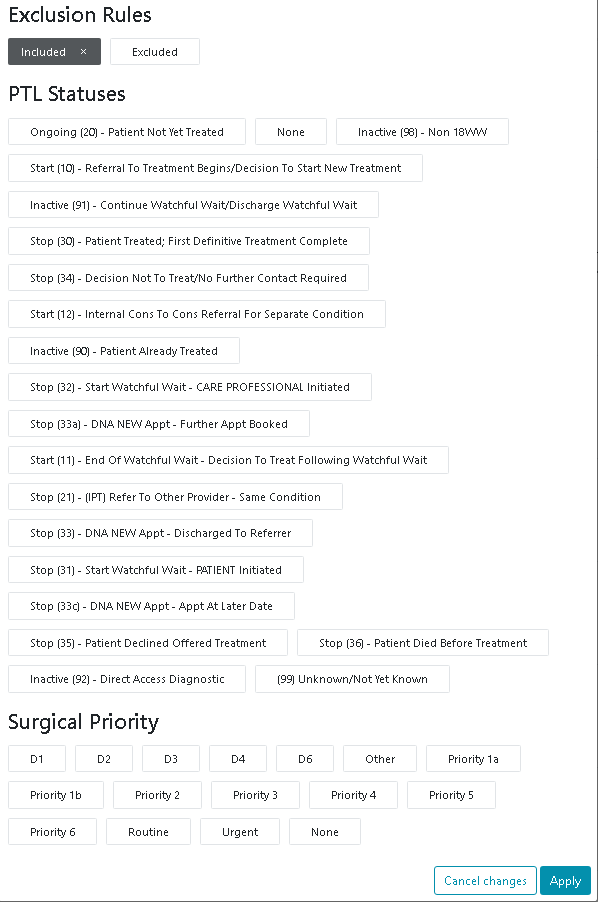
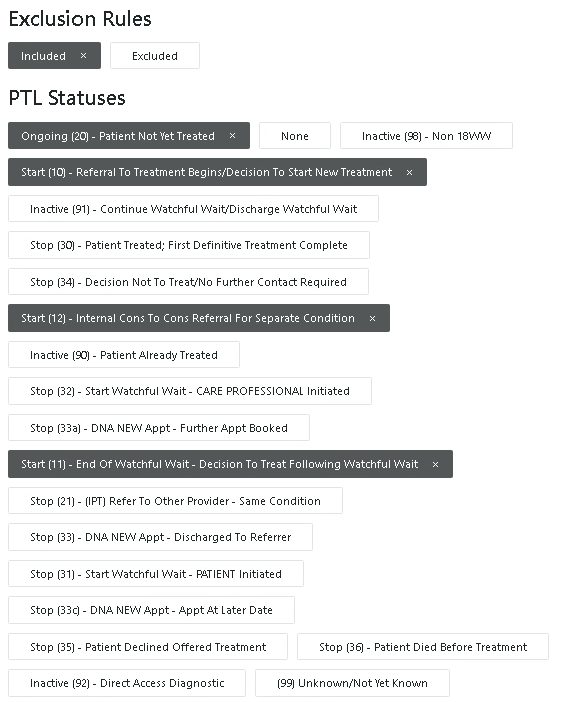
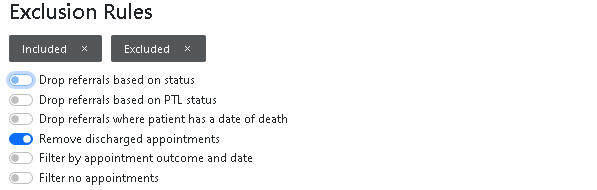
Fig. 10 Patient Tracking List user filter options#
Patient Timeline page#
This page will primarily be of benefit to Clinicians and colleagues involved in pathway validation, audit, investigation, root cause analysis, etc., where a view of the entire pathway needs to be taken (which could cover several years and/or dozens of different events using information from multiple systems).
There are some additional user functions on this page that may be provided as additional software modules (Validation and Task Management). Only one pathway can be reviewed at a time. Each event can be expanded to see more information, and the data displayed can be amended on implementation.
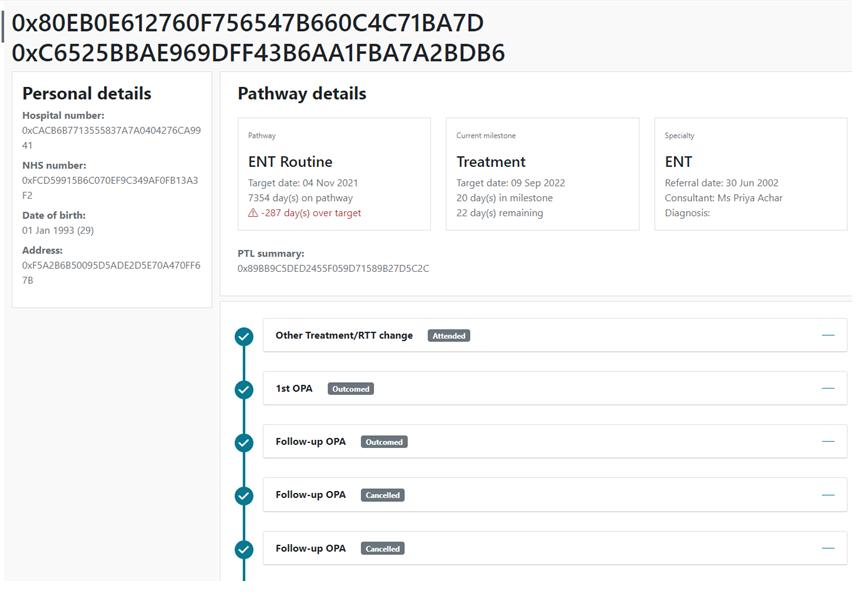
Fig. 11 Patient Timeline page#
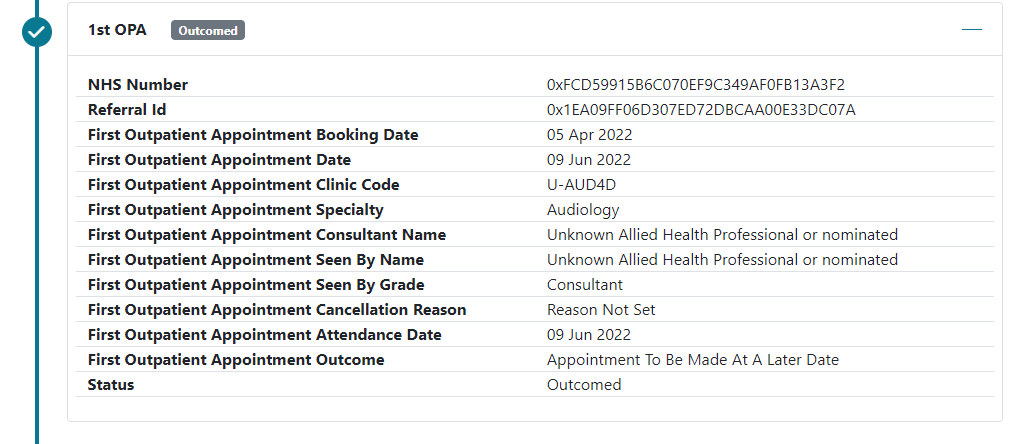
Fig. 12 Patient Timeline pathway accordion expanded#
Additional patient pathway information is accessed via the ‘accordion’ drop-down arrow
Intelligent Pathway Tagging#
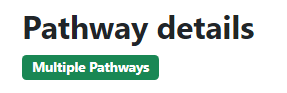
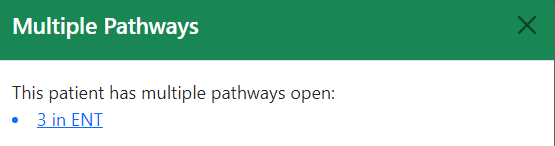
Patient Tracker will tag pathways where there are potential validation problems. As standard, Patient Tracker will tag a pathway when:
-
There are multiple pathways for a single patient
-
There are important dates missing within the source data
-
There is an inconsistent RTT status for the pathway
-
The pathway is excluded from default worklists due to a business rule
Clicking on the Tag will provide further information and may provide a link to a worklist.
Sharing Pathways#
By clicking on the ‘Share’ button next to the patient’s name, you are able to send the pathway page via email to another user. The URL link will be copied to clipboard and can be sent to another person via email or Teams. Provided they have correct permissions they will be able to access the pathway via this link.

Task Management#
Patient Tracker has a Task Management module that can be included as an optional extra to assist with the escalation and management of pathways. By clicking the Task Management button a user is able to allocate another person to perform a task. They can write details about the task that needs performing, and set a deadline for completion. Tasks may only be assigned to application users with active accounts.

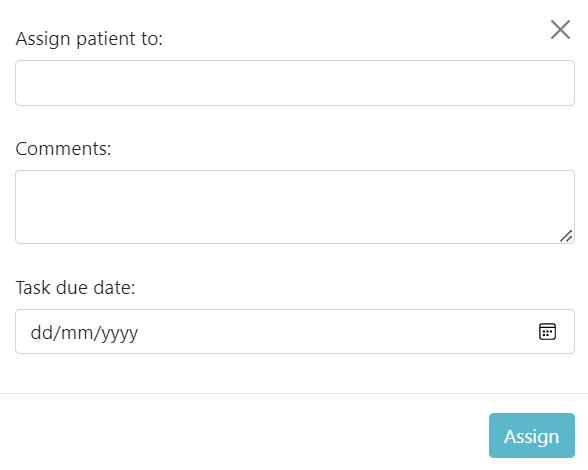
When a user is assigned a task, they will receive an email informing them of this. The pathway, and information about the task, will also appear on their task management worklist.

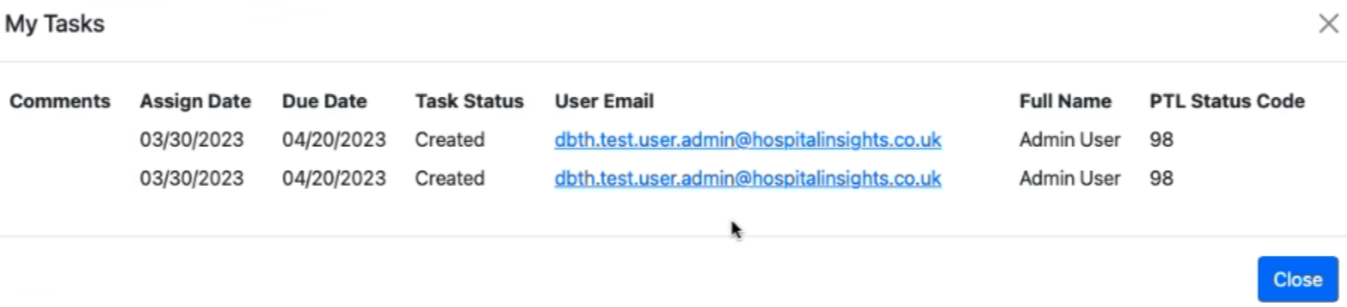
When a task is assigned, information about the task and the users will appear under ‘PTL Service Summary’. This information retains an audit trail, and is visible to all users.
Once a task is allocated, a user is able to do one of two things: mark the task as completed, or cancel the task. They could then assign a task back to the original user if required. When a task is completed or cancelled, this will appear under PTL Service Summary for all users to see. An audit trail is maintained of these actions.
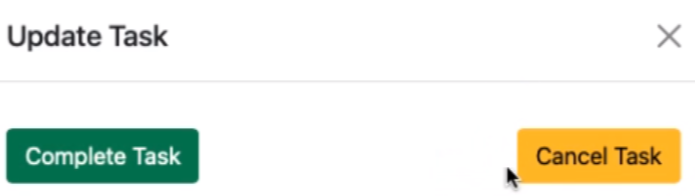
We advise that when a user allocates a task to someone, the original allocator remains responsible for ensuring the task is completed. When a task is allocated, the user allocating the task will see the pathway on their ‘Tasks I have allocated’ worklist - they can see details of the task and the deadline. Once the deadline has passed, this task will also appear on an additional worklist for the allocator.
Validation#
Patient Tracker has a validation module that can be included is an optional extra to assist with validation of patients. The application will allow certain users, with validation permissions, to ‘Validate’ pathways.
The validation process differs between Trusts, and the requirements around this will vary between Trusts. Our standard approach is to allow for different ‘types’ of validation and different validation outcomes (chosen from dropdown box configured during implementation) and a text comment box.
Once a comment has been made, a pathway will be tagged as ‘Validated’ - this is time dated, allowing filtering and sorting by validation status. Our standard approach is that patient’s will be identified as requiring validation every 12 weeks - this can be altered during configuration. For example, a Trust may wish for patients to be re-validated every time a new event happens on the pathway, or when a patient enters a new milestone.
Users without validation permission will see the ‘Validation Summary’ comments only, without any ability to write comments. If there are more than three lines of validation comments then older comments will be hidden, and can be viewed by pressing the ‘View More’ button.


User Types, Uses of Patient Tracker and User Management#
User Types#
Patient Tracker has been designed to deliver a number of benefits and use cases to a variety of different users. We define four types of users:
|
User type |
Description & examples |
|---|---|
|
Administrative & Clerical |
Primary users, staff who have a role in tracking, monitoring or arranging next appointment / treatment / diagnostics for patients. Examples will include Validators, Cancer Trackers, MDT co-ordinators, Waiting list co-ordinators, Secretaries, Receptionists, etc |
|
Managerial |
Primary users, Operational specialty or cancer-site focussed, responsible for assessing patient flow, identifying/addressing bottlenecks, and delivering service improvements, national targets, etc. Examples include Pathway Managers, Service Managers, etc. |
|
Clinical |
Secondary users, who have a role in delivering patient diagnosis and/or treatment. Benefits for such users will primarily arise from seeing individual patient pathways laid out in a story format to show individual progression. Examples include doctors, nurses, AHPs, etc. |
|
System Administrator / Specialty Super Users |
Limited numbers of users for each Specialty will take responsibility to maintain user access and permissions to Patient Tracker and maintain the Key Performance Indicators associated with each Specialty and pathway priority. |
Intended uses of Patient Tracker by user type#
|
User type |
Intended uses of Patient Tracker |
Anticipated frequency of use |
|---|---|---|
|
Administrative & Clerical |
- Identification of patients who have exceeded their event milestones |
Daily |
|
Managerial |
- Identification of pathway bottlenecks and patient cohorts of concern |
Daily |
|
Clinical |
- Overview of individual patient pathways via one system |
Various, depending on role |
|
System Administrator / Specialty Super Users |
- Assurance that only the correct users have access to each Specialty |
Weekly |
User Management page (for System Administrator and Specialty Super Users only)#
Users with System Administrator rights will be presented with an expanded menu area (see below) that includes two options:
-
User management
-
Pathways management
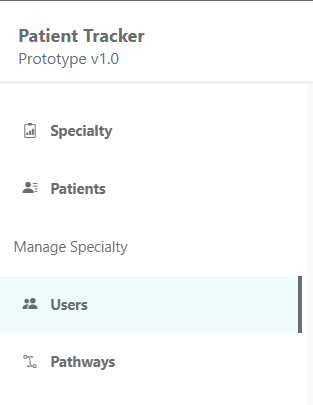
Fig. 13 Patient Tracker menu bar (showing 2 options accessible to System Administrators and Super Users only) #
Process for adding new users**#
-
See Fig. 14 below
-
Select ‘Users’ under the Manage Specialty menu
-
Select ‘Add User +’ which will open a new window with a search bar
-
Begin typing in the SURNAME of the new user – once you have typed 3 characters, the app will query the AAD user directory and return matching names
-
Select user and check that the details are correct; add the users internal / mobile phone number
-
Select specialty (or specialties) that the individual user has permission to view patient data for
-
Assign status to ‘active’ (defaults to ‘inactive’)
-
Assign System administrator status as appropriate (defaults to ‘inactive’)
-
Select ‘Confirm and add user’
-
At any point, selecting ‘Cancel’ will void the creation of a new user account
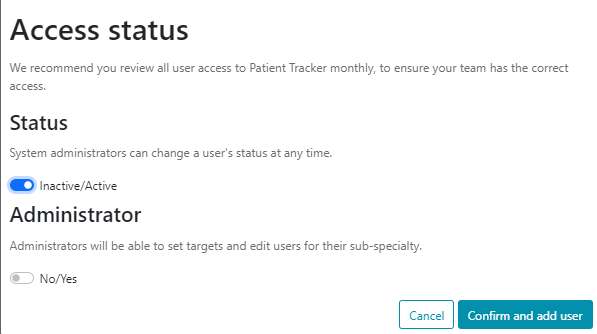
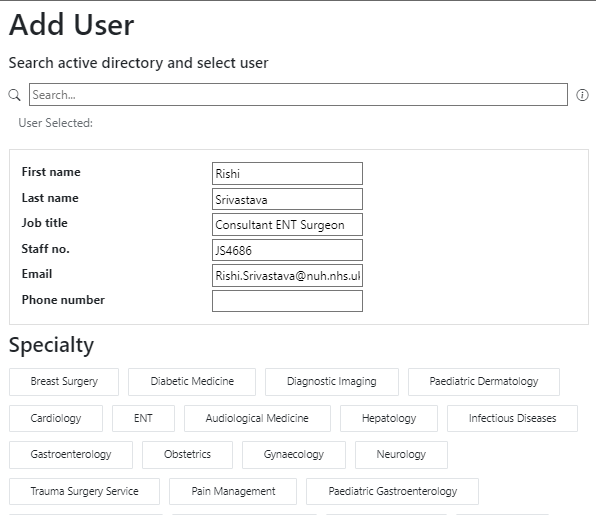
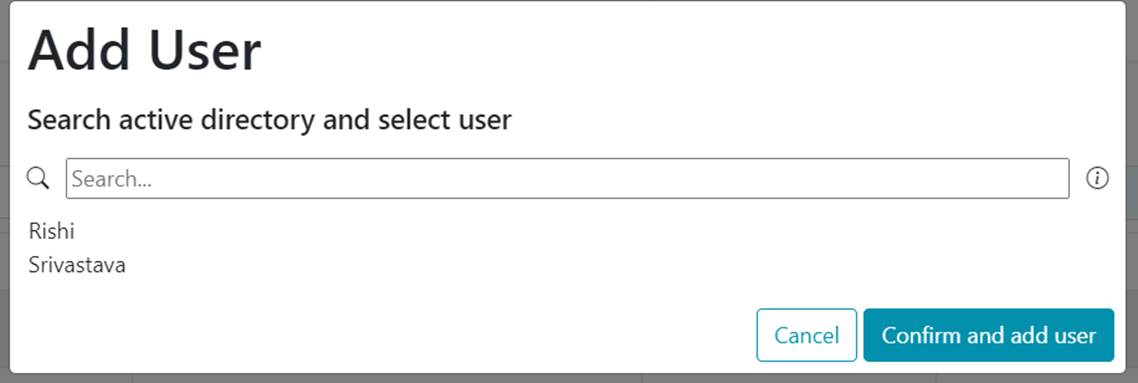
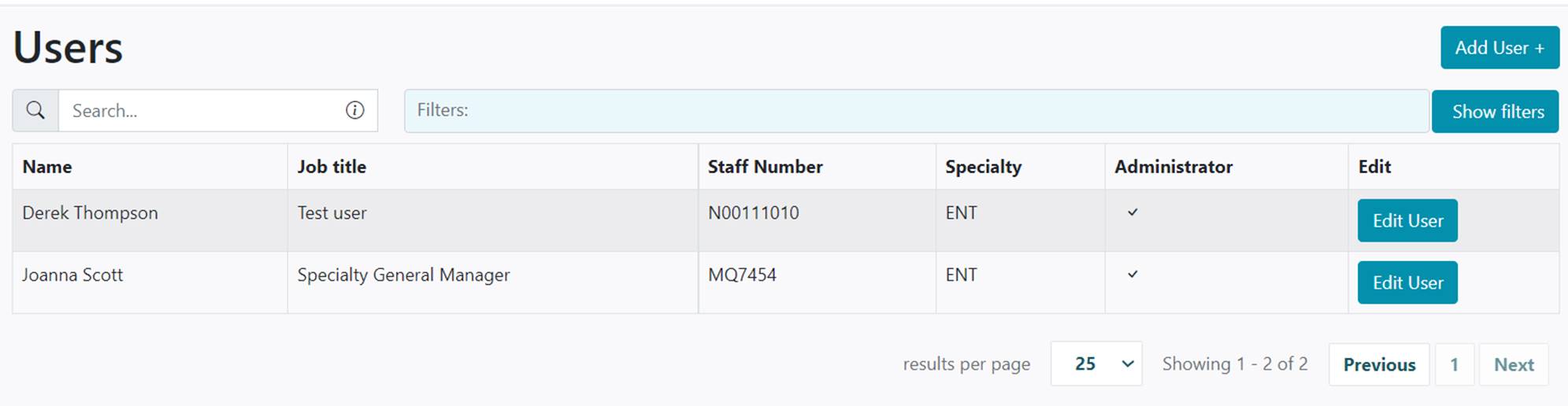
Fig. 14 User configuration windows with worked example#
The email address used for login should match the email address used for Trust SSO. In some circumstances this is a hidden email address that is not used for login or normal Trust communication. The communication email address should be a Trust or NHS email address that is primarily used for work activity.
Process for configuring or amending user details#
-
Select ‘Users’ under the Manage Specialty menu
-
Locate user from list, or alternatively search for the user and/or use filters to locate multiple users
-
Click on ‘Edit User’
-
Make required changes
-
Click ‘Confirm and edit user’
-
At any point, selecting ‘Cancel’ will void any edits made to the user account
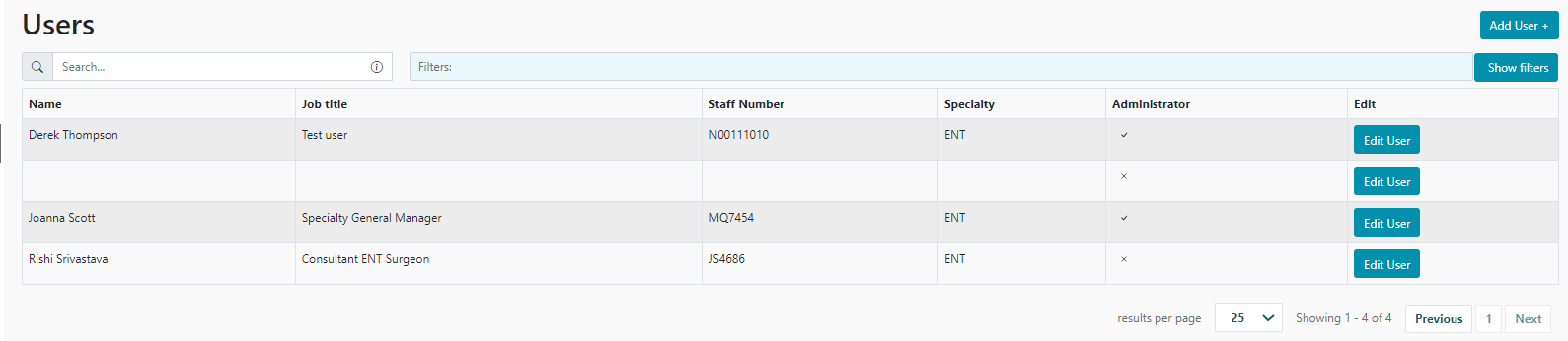
Fig. 15 User overview, edit, search, filter and add functions#
User management trouble-shooting#
-
Unable to find user: only users who have an approved email address and exist in the permitted active directory can be given access to the Patient Tracker. Check the spelling of the name that you have entered. If spelt correctly and user still does not appear, please contact local IT to check that the user has been correctly set-up with an account and is on the correct Active Directory.
-
Added user cannot access Patient Tracker: some Trust employees may have more than one username / account. Typically such individuals log into their PC with one username, but then have a second username that they use for email and accessing Microsoft 365 products. A user may not be aware of a second email addres. The ‘correct’ username may be the one that is used to log into the PC – go into ‘Edit User’ and amend the email address to the appropriate account, save and then ask the user to try again.
-
N.B. Issues here can arise from hyphenated names and can be resolved by ensuring the* same name format that is used to login to a trust PC is used for Patient Tracker.
-
-
Unable to delete user(s): user profiles cannot be deleted. This ensures the integrity of the audit logs. Users have one of two statuses: active or inactive. It is the responsibility of the System Administrator to ensure staff members who no longer require access are made ‘inactive’.
-
User details are incorrect (such as wrong job title, email address): all data is supplied directly from the Trust Active Directory which should be maintained locally. Please contact IT to check that the user has been correctly set-up with an account, is on the correct Active Directory, and has Single sign-on permissions.
Pathway management and configuration (for Specialty Super Users and System Administrators only)#
Each Specialty, by default, has three distinct priority pathways (though not every Specialty will make use of all three priority types):
-
Routine
-
Urgent
-
Cancer (2 week wait / Faster Diagnosis Standard)
Each priority pathway can be fully configured to include / exclude particular events and milestones, as well as to set local KPIs (set by each specialty) for each milestone, e.g. expectations for processing a Cancer referral or diagnostic will be shorter than that for a Routine patient.
Each priority is split between ‘first treatment’ steps that will include referral and 1st Outpatient appointment, and ‘subsequent treatment’ once the first definitive treatment has been delivered.
A ‘Not Set’ priority type exists, when a referral does not have a priority set within the source data.
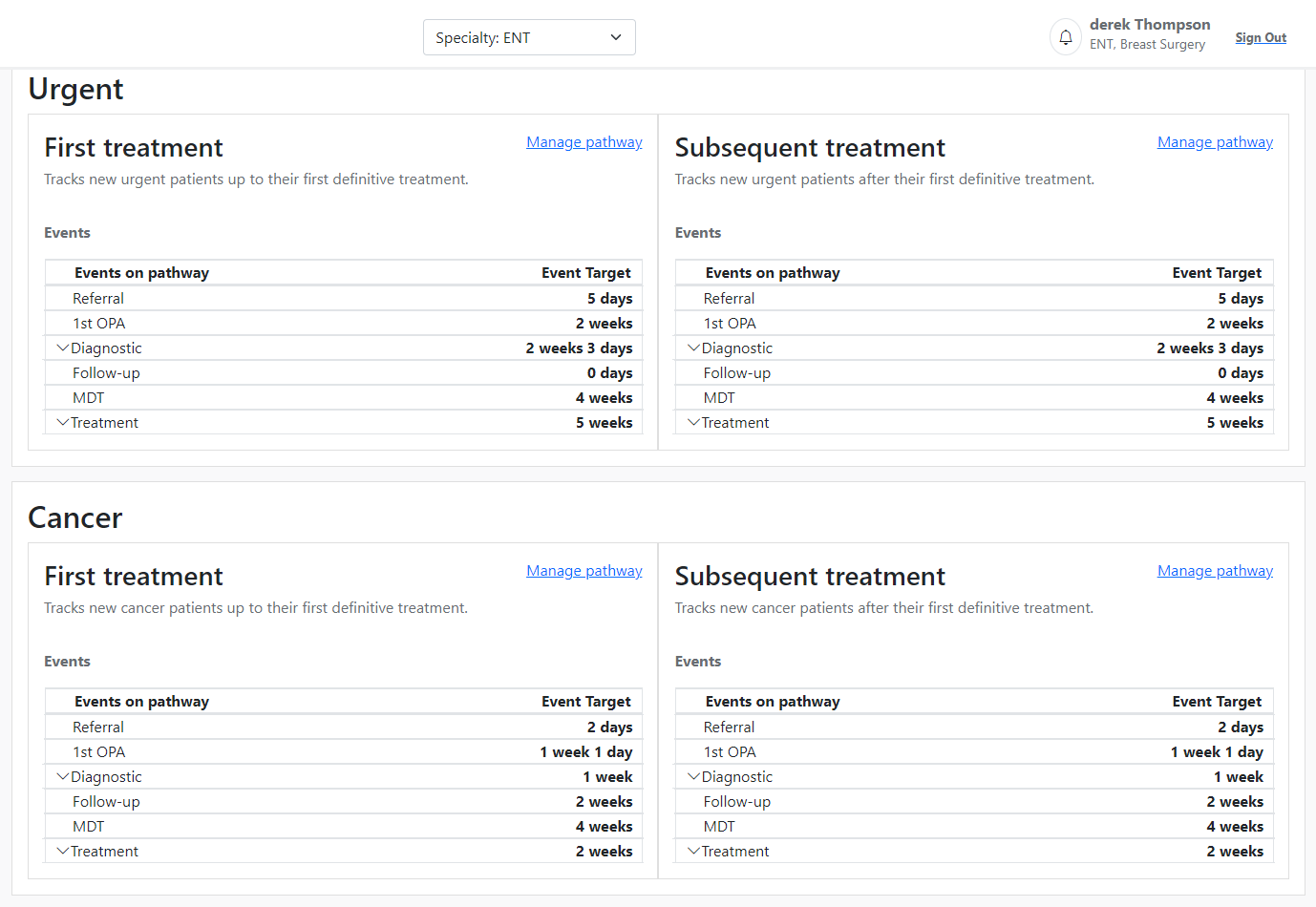
Fig. 16 Pathway overview and configuration page#
The way event KPIs are calculated varies depending on the event. Some use the pathway referral date as the start, whilst others, which are dependent upon orders being placed, use the order date as the start. All pathways can be ended, regardless of the milestone or event, by the patient’s discharge (correctly entered in the PAS system) or by the patient’s death. A pathway may be removed from the application depending on business rules. See table below:
|
User type |
Intended uses of Patient Tracker |
Anticipated frequency of use |
|---|---|---|
|
Administrative & Clerical |
- Identification of patients who have exceeded their event milestones |
Daily |
|
Managerial |
- Identification of pathway bottlenecks and patient cohorts of concern |
Daily |
|
Clinical |
- Overview of individual patient pathways via one system |
Various, depending on role |
|
System Administrator / Specialty Super Users |
- Assurance that only the correct users have access to each Specialty |
Weekly |
Where multiple events occur on the same day, Patient Tracker uses logic to identify the event that most constrains progress of the pathway to inform which milestone the patient pathway should be recorded against. For this reason, it is possible that a patient pathway could have a ‘later’ event arranged (i.e., listed for MDT), but they don’t appear in the MDT milestone because there is an earlier event that is incomplete (i.e., waiting for a histopathology result, placing the patient pathway in the ‘Diagnostic’ milestone).
Process for configuring or amending pathways#
-
Select ‘Manage pathway’ against the correct priority and first/subsequent treatment
-
Check each box for events that are relevant to the pathway. Events that are not applicable should be left unchecked
-
Adjust the individual KPI values (represented in days) for each checked event
-
Again, these do not necessarily need to reflect national targets, but should reflect the timepoint at which a specialty wants to be alerted about potential delays with that patient pathway, e.g. if no action has been taken on a Cancer referral after 7 days
-
-
Save changes (which will open a new prompt box for you to confirm or cancel the order)
-
Changes will be applied to the data on the next refresh.
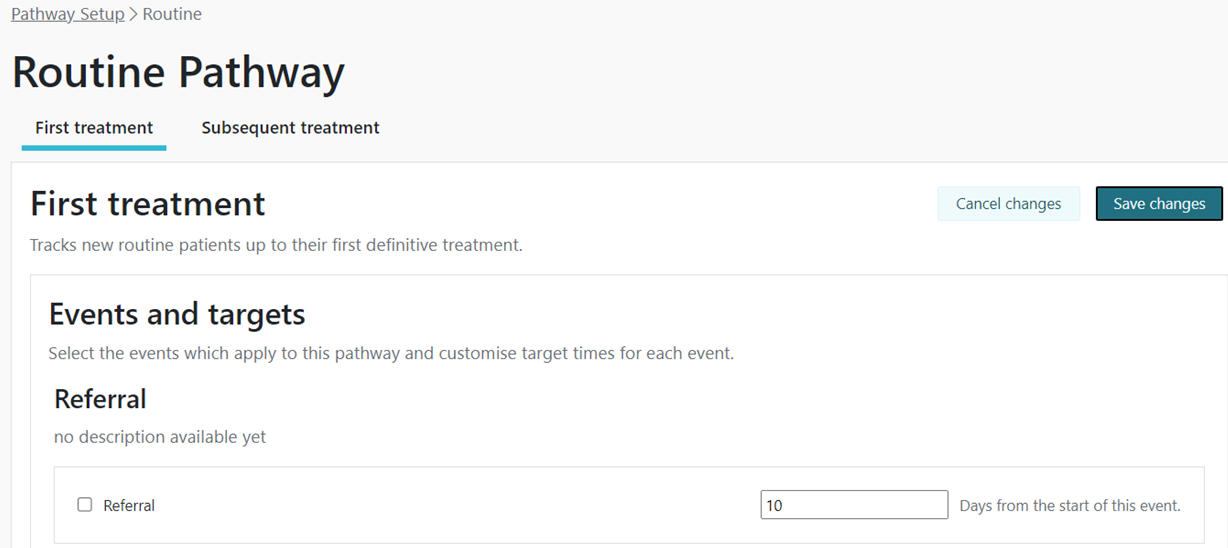
Fig. 17 Pathway configuration area for Routine Pathways#
Users should be aware of the different ‘start’ points for event KPIs (as per table on previous page) – some are based on the referral date, others are based on the date on which an event is ordered. Subsequent follow-ups are handled in a different way to other KPIs due to their cyclical nature - the KPI start date will be the date of the last attended follow-up appointment.
Detailed Breakdown of functions#
In this section we will cover how to use each of the tabs and all the features provided to the user.
Filtering data#
Filters can be applied to data shown on the Specialty Overview and Patient Tracking List pages to focus on subsets of patients within a specialty.
Applying Filters#
A pre-defined list of filters has been designed to meet a wide range of use cases. As shown in the diagram below, these are split into:
-
Patient type*
-
Pathway stage
-
Current milestone
-
Pathways in breach
-
Named Consultant*
-
Time on pathway*
By default, no filters are applied to the data. There are no limits to the number of filters that can be applied at any one time. The timeline filter can be adjusted by moving one / both dark blue dots to specify the required duration.
*reduced filter options exist in the Specialty Overview page.
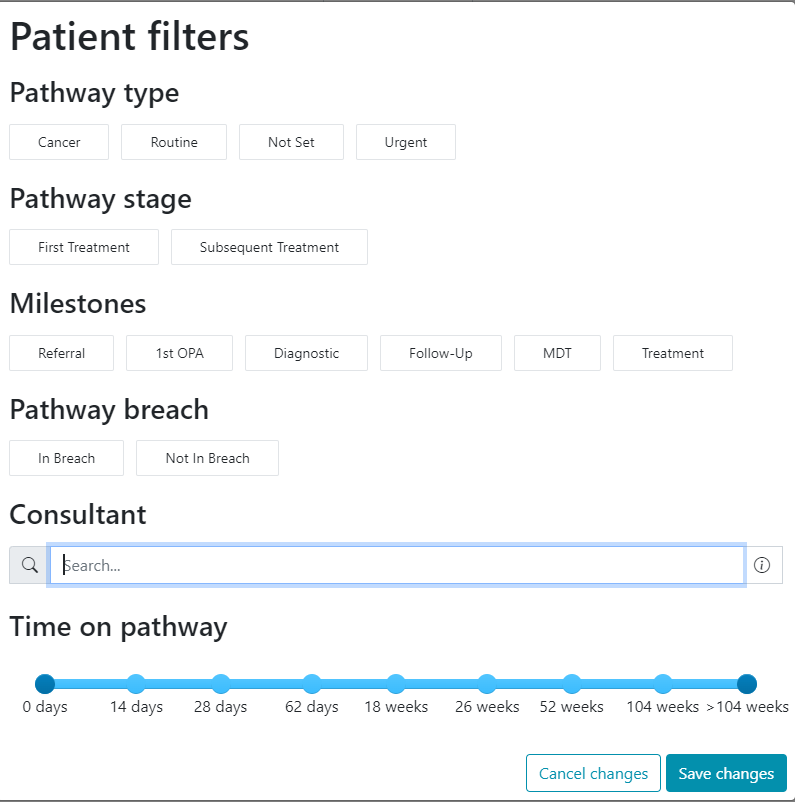
Fig. 18 PTL user filter options#
Applying Filter-combinations#
The following combinations are suggestions to help users understand how different combinations of filters can be used to find the data they require.
Note
For the Alpha version (v1.0) of Patient Tracker, there is currently no way to save combinations as favourites / short-cuts, but this development is planned for later in 2022/23.
|
User data requirement: |
Pathway Type |
Pathway Stage |
Milestones |
Pathway Breach |
Consultant |
Time on Pathway |
|---|---|---|---|---|---|---|
|
As a Secretary, I look after patients belonging to 3 Consultants. How do I see only those patients belonging to the 3 Consultants? |
Type Consultants’ surnames into search bar |
|||||
|
As a Manager, I need to ensure the number of patients waiting greater than 52 weeks are reducing. How do I see only those patients? |
Adjust the sliding scale so that the left-hand dot starts at 52 weeks |
|||||
|
As a Cancer Tracker, I want to only see patients on the cancer pathway who are fully worked-up for MDT |
Select ‘Cancer’ |
Select ‘MDT’ |
||||
|
As an RTT tracker, I want to only see patients who are breaching their pathway KPIs |
Select ‘Urgent’ & ‘Routine’ |
Select ‘First Treatment’ |
Select ‘In Breach’ |
|||
|
As a Consultant, I only want to see my own patients who are awaiting a next event after their first definitive treatment |
Select ‘Subsequent Treatment’ |
Type Consultants’ surname into search bar |
||||
|
As an administrator working the Central Appointment Team, I only want to see patients awaiting a first outpatient appointment to be booked or re-booked |
Select ‘Referral’ |
|||||
|
As a Manager, I want to understand where bottlenecks are forming in my specialty pathway |
Select ‘First Treatment’ |
Select ‘In Breach’ |
||||
|
Using filter combinations on the front Specialty Overview page |
||||||
|
As a Consultant, I want to review the results for my patients that have been published overnight |
Then scroll to the ‘Breach Analysis’ section at the bottom of the Specialty Overview page; select ‘Diagnostic’, then selected those services that have pathways against them; look for those pathways in the final stage (‘completed’ or ‘reported’) |
First type Consultants’ surname into search bar |
Saving Filters#
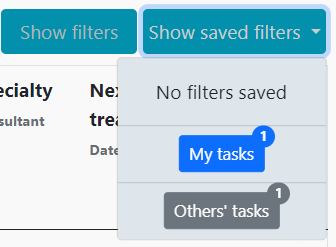
When a single filter, or combination of filters, is selected on the filter pop-up, users have the option of either applying the filters, or saving and applying the filters. If a user has a set of filters they often work with, they can press ‘save’, give a name to their worklist, and easily access this worklist in future by pressing the ‘show saved filters’ button.
Allocated tasks (either allocated by or too the user) will appear on dynamic worklists that will show under ‘Show saved filters’. If a user does not have a saved worklist ‘No filters saved’ will be displayed.
Dependent on Trust configurations and requirements, users will be able to opt-in to receive updates on saved worklists. For example, if after the data refresh a new patient is added to their saved list, they will receive an email to inform them. This is entirely user controlled, and not a requirement to use the system.
Understanding KPIs#
Key performance indicators (KPIs) are targets, measured in days, that a particular event is expected to take. KPIs are aligned to the priority of a patient’s pathway (Cancer, Urgent, Routine), and can be configured to include/exclude event types, depending upon the specialty.
For example, in the Breast specialty, a typical event in a patient pathway would be a mammogram which would typically be performed on the same day that it is requested for a patient referred with a suspicion of cancer. An event that would not be relevant to the pathway, as another example, would be an Audiology test. In the configuration of the Breast pathway, therefore, the ‘Audiology’ event would be removed, and the Mammogram event could be set to a KPI of ‘1’ day. In this example, at day 2 the patient would appear as a ‘breach’ patient.
By clicking on the underlined numerical breach value below a milestone, a user can be taken to a worklist showing these patients.
The following table illustrates a ‘typical’ suggested KPI list, split by pathway priority:
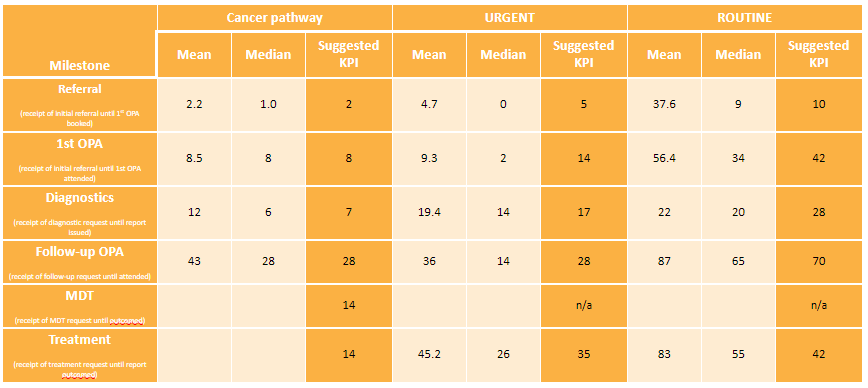
Fig. 19 Typical KPI list#
Patient Tracking List Functions#
Search bar#
It is possible to search for specific patients within a single specialty using one of the following identifiers:
-
Hospital number (unique identifier)
-
NHS number (unique identifier)
-
Patient first name and surname (non-unique identifier)
-
Comments within the PTL Service Summary
Sort options#
8 pre-defined sort options have been included to enable the user to re-arrange the Patient Tracking List based on their enquiry. By default, the PTL is displayed with the patient who has been on the specialty pathway for the longest appearing at the top of the list.
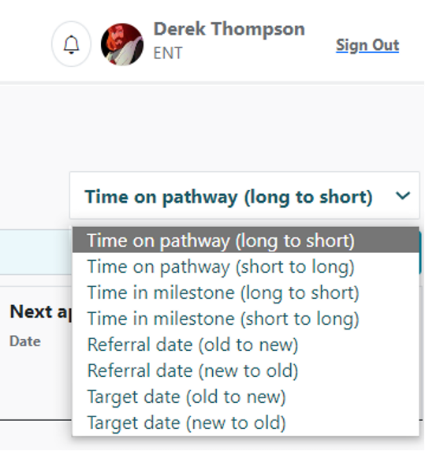
Fig. 20 PTL user sort options#
Audit#
In this section we will cover how to use the auditing functionality using the SQL database.
Introduction#
One of the main requests that came from the business was having an individual user’s actions be fully trackable and traceable. To enable the internal IT team to successfully track who is looking at what, specifically at a Consultant and Patient level, an auditing table was created that tracks the users across the system, to a Tab, Page & URL.
Audit Table Schema#
The audit table links to 3 other tables to enable the successful tracking of user actions, these being the user table (to link to the user taking the action), the AppController (linking to the Tab being accessed), and finally the AppAction (the individual page underneath the tab e.g., Add or Edit on the Users tab). This table can then be queried to show which user has been looking at what. The audit table schema is shown below:
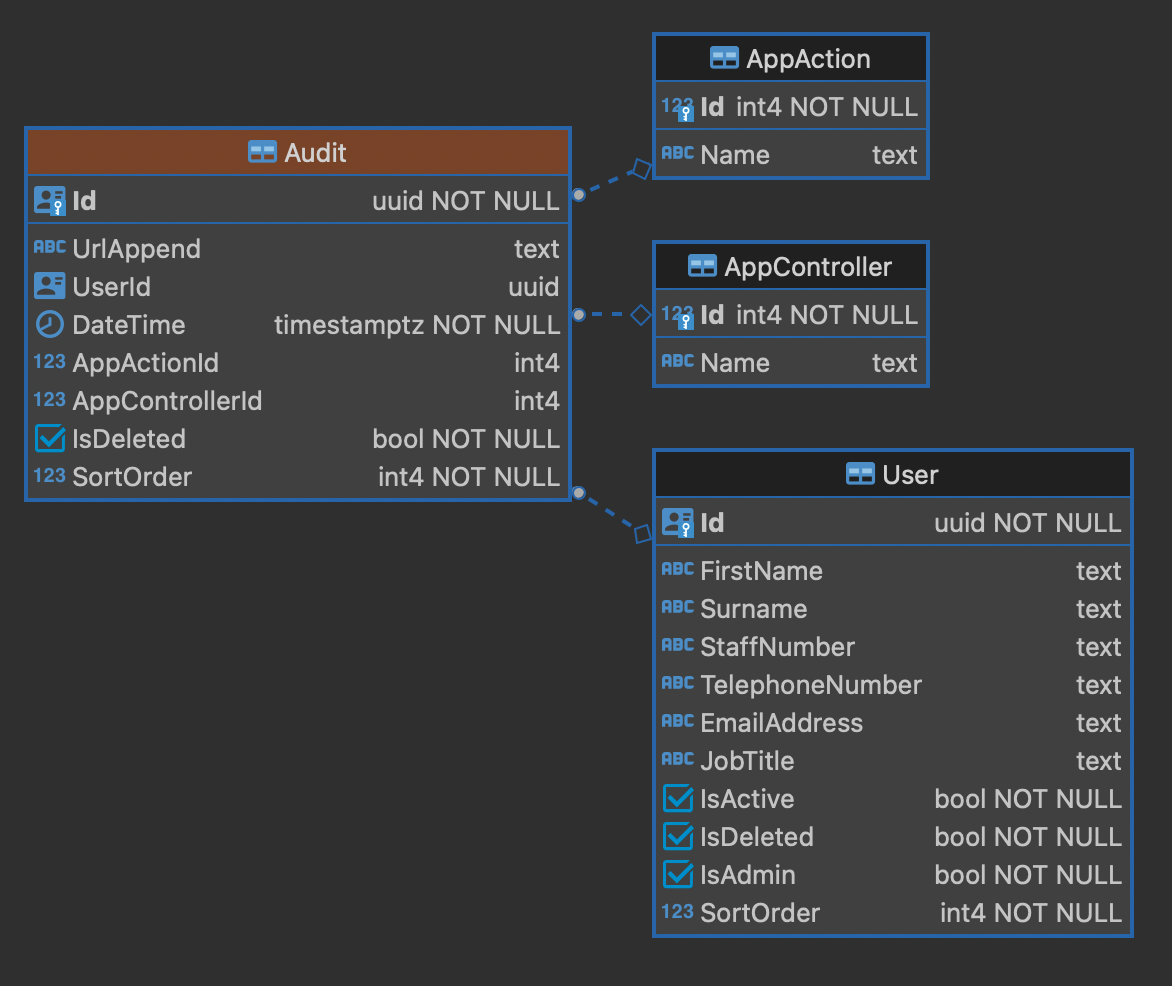
Fig. 21 Audit table schema#
AppController & AppAction tables#
The AppController and AppAction tables are Reference tables that will not change outside of development cycles. These tables contents look like the following:
App controller:
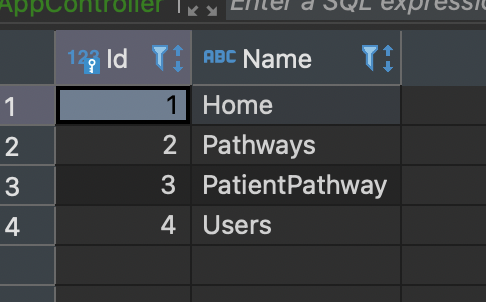
Fig. 22 App Controller#
App Action:
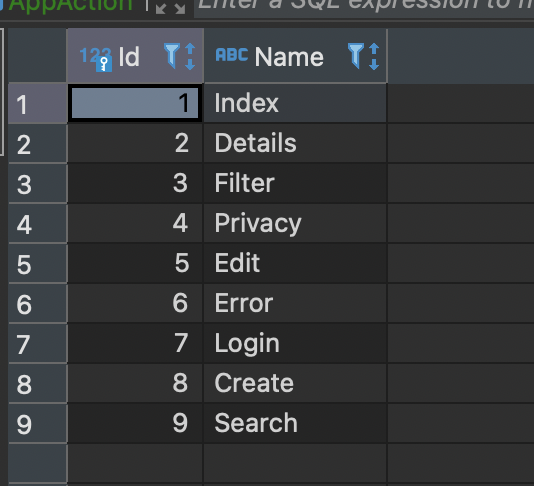
Fig. 23 App Action#
Mapping of tabs & pages#
Above is a picture of the tabs of the application. To successfully track and trace the users we need to map these tabs to their controller names. A map of the different tabs & pages
|
Tab name / method |
Controller name |
Action name |
URL for page |
Parameters |
|---|---|---|---|---|
|
Specialty |
Home |
|||
|
Index |
Home/Index |
string selectedSpecId |
||
|
Privacy |
Home/Privacy |
|||
|
Error |
Home/Error |
|||
|
Patients |
PatientPathway |
|||
|
Index |
PatientPathway/Index |
int pageNumber, int pageSize, int sortingID, string searchString, string filterPrio, string filterPS, string filterMS, string filterIB, string filterCon, string filterToPMin, string filterToPMax, string filterET, string filterES, string selectedSpecId |
||
|
Details |
PatientPathway/Details |
string patientPathwayId string selectedSpecId |
||
|
Filter |
PatientPathway/Filter |
string selectedSpecId, string filterToPMin, string filterToPMax |
||
|
Users |
Users |
|||
|
Index |
Users/Index |
string searchString, int pageNumber, int pageSize, string filterSpecialties, string filterAdmin, string selectedSpecId |
||
|
Details |
Users/Details |
Guid id, string selectedSpecId |
||
|
Create |
Users/Create |
string selectedSpecId, string selectedUser |
||
|
Search |
Users/Search |
string filter, string selectedSpecId |
||
|
Edit |
Users/Edit |
string selectedSpecId, Guid id |
||
|
Filter |
Users/Filter |
string selectedSpecId |
||
|
Pathways |
Pathways |
|||
|
Index |
Pathways/Index |
string selectedSpecId |
||
|
Edit |
Pathways/Edit |
string selectedSpecId, bool isSaved |
The last piece is the URLAppend column on the audit table, which is the parameters being passed to the backend to query. This is how we can identify who is who and what they have been looking at for each of the pages.
Overall Audit trail#
select u."EmailAddress" as User, ac."Name" as ControllerName, aa."Name" as ActionName, a."UrlAppend", a."DateTime" from public."Audit" a
inner join public."AppController" ac on ac."Id" = a."AppControllerId"
inner join public."AppAction" aa on aa."Id" = a."AppActionId"
inner join public."User" u on u."Id" = a."UserId"
order by a."DateTime" desc

When we run the above formatted query we can see that user Derek Thompson has been navigating around the User, Specialty and Patient pages.
Tracking who has been looking at an individual patient#

If we focus on the above line we can see that the Details section of the PatientPathway page was accessed. Using the URLAppend column we can identify who it was that we were looking at, using the below script:
select u."EmailAddress", ac."Name", aa."Name", p."FirstName", p."FirstName", p."PrimaryEmailAddress"  from public."Audit" a
inner join public."PatientPathway" pp on a."UrlAppend" like (select CONCAT('%patientPathwayId=', pp."Id", '%'))
inner join public."Patient" p on p."Id" = pp."PatientId"
inner join public."AppController" ac on ac."Id" = a."AppControllerId"
inner join public."AppAction" aa on aa."Id" = a."AppActionId"
inner join public."User" u on u."Id" = a."UserId"
order by a."DateTime" desc

The above shows the User who access the info, the controller/action and the Patients first & last name and email.
Tracking who has been looking at a consultant filter#
We can use the above schema and modify the second line to show us who has been using what filters too in the same manner of inner joining:
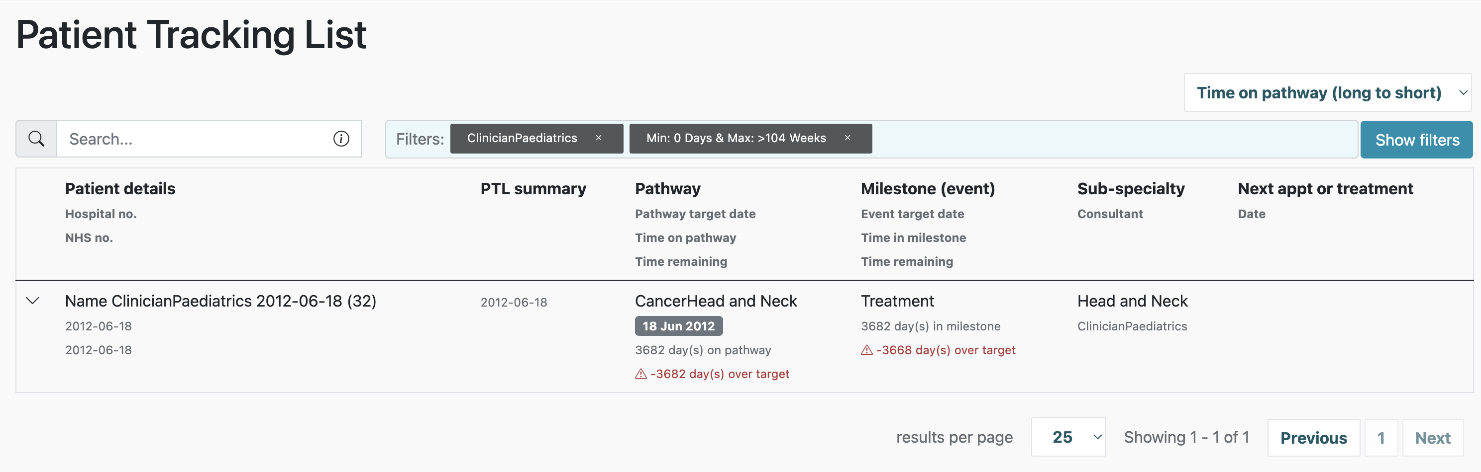
Fig. 24 Patient Tracking List with filters applied #
select u."EmailAddress", ac."Name", aa."Name", c."Name"  from public."Audit" a
inner join public."Clinician" c on a."UrlAppend" like (select CONCAT('%fcon_', c."Id", '%'))
inner join public."AppController" ac on ac."Id" = a."AppControllerId"
inner join public."AppAction" aa on aa."Id" = a."AppActionId"
inner join public."User" u on u."Id" = a."UserId"
order by a."DateTime" desc

Rules, Assumptions, and Logic#
Rules#
Patient Tracker contains several complex algorithms that are used to determine the milestone position of every patient pathway.
-
Pathways can only appear once in a single milestone (though note that Patients may have more than one active pathway in existence – this is not a duplication in Patient Tracker, but potentially in Medway).
-
Progression through milestones is dependent upon a next ‘event’; as a safety net, patients will not progress to the next milestone (and therefore their time will continue to accrue against the Specialty KPIs), until action has been taken to complete the previous milestone.
Examples of this include:
-
Patients who are referred into the hospital will remain in the ‘referral’ milestone until a 1st outpatient appointment has been booked
-
Patients undergoing a diagnostic event will remain in the ‘diagnostic’ milestone, even when the event is completed and reported, until a next event (ie: MDT, outpatient appointment, surgical TCI, etc) is scheduled on the basis that the diagnostic result should inform the next step in the pathway
-
Patients who have undergone multiple events in the same milestone will have their KPI for that milestone start from the first event in that milestone.
-
Unless the most recent event is booked/requested, then the KPI shall start from the booking/request date.
-
-
Should the patient have multiple open events (ie booked, requested, awaiting results), then the most significant milestone shall be chosen. This ranking is as follows (highest number is most significant):
-
Referral
-
First OPA
-
Follow-up OPA
-
MDT
-
Diagnostic
-
Treatment
-
-
-
Patients will only appear in subsequent treatment if they receive a treatment on the pathway. This could mean that inactive patients who never receive a treatment will appear in the ‘first treatment’ stage, as standard. This is configurable if required, whereby particular RTT status could be displayed on a particular side of the dashboard.
-
Subsequent Outpatients are treated as a cyclical event, and the KPI start date is set as the date of the last attended activity.
-
Patients who DNA an appointment, or have an event cancelled will revert back
-
Patients who are recorded as ‘deceased’ in Medway are removed from Patient Tracker
Definitions#
Some examples of definitions applied to data labels are captured below:
-
Event - any planned activity that occurs to progress a patient’s pathway. This will include, for example, outpatient appointments, diagnostic tests, treatment such as surgeries through to physiotherapy appointments.
-
KPIs (Key Performance Indicators) - the number of days it is expected to take between the start of an event (referral, order, etc) to the end (outcome, reported, discharged, etc).
-
Milestones - the significant events that pathways encounter as a patient progresses from referral, to diagnosis, to treatment and discharge.
-
Primary Consultant / Named Consultant - this is a difficult area to define: the application of the named Consultant occurs at different times during the pathway depending on Specialty (and even sub-Specialty). This is managed through the source system data.
In Breast, for example, patient lists and clinics are often pooled. A named clinician is on occasion allocated at the point of surgery for those patients who require it, but otherwise the majority of patients may be recorded as being under a single consultant. Patient Tracker assumes that the named Consultant who is in charge of the 1^st^ Outpatient Clinic that a patient attends is the Consultant with responsibility for a patient.
Benefits#
|
Benefit |
Description |
Impact to users |
Impact to patients |
|---|---|---|---|
|
Single sign-on |
Allows users instant access to patient records and visibility of multiple clinical system outputs in one location |
- Reduced time opening multiple clinical systems and re-entering patient details to locate the latest records (NB: some clinical systems will still need to be opened in order to see more than a ‘summary’ output) |
Reduces the chances of events (such as diagnostic outcomes) being missed by Clinicians |
|
Highlights delayed patients |
Patients who have waited longer than planned for an event to complete are highlighted as ‘breaches’ to users |
- Quick and reliable identification of pathways that have stalled |
- Reduces the possibility of a pathway becoming ‘lost’ |
|
Pathway bottleneck identification |
- Users will see-at-a-glance if elements of their Specialty pathway are blocked or becoming a concern |
- Users can quickly identify and evidence concerns and take action to prompt / escalate risks as they develop |
“ |
|
Clinical assurance / earlier detection of ‘at risk’ patients |
- Users can identify quickly those patients who are at risk of progress stalling. Clinicians can quickly ‘eyeball’ individual patient progression. |
- Assurance that patients are where they are meant to be |
“ |
|
Significant reduction in non-value-add tasks |
Administrative and Clerical staff spend considerable time manually checking patient progress of all pathways that are open |
- Users have more time to spend on pathways where they can add value by progressing patients |
- Reduces the instances of outlier cases with long waits, thereby reducing the average time for all patients to move through a Specialty pathway |
|
Pathway validation |
Patient Tracker reveals all open pathways to users – enabling those opened in error, not yet closed, duplicated, etc to be readily identified |
- Users are able to identify and close-down such pathways |
- Reduces examples of wasted resource allocation made to duplicate pathways |
|
Information Governance & Audit |
System access is restricted to those users who should have access, and only then to their Specialty |
Contact us#
There will be local agreements on escalation for problems or help required for Patient Tracker. During implementation this will be via the PA Consulting implementation team. Following this, the standard escalation procedure would be to system administrators and then to local IT department who can escalate to PA if required.
For general comments, feedback, and suggestions please get in touch:
-
support@patientcatalyst.co.uk
-
support@hospitalinsights.co.uk